
Export in FL Studio. Scheduled on YouTube & BeatStars.
A VST3 plugin for FL Studio. Put it on your Master, export your beat as usual, check the recap, hit Publish.
Requires a ScheduleBeats account · Current version: v0.6.1 · macOS 10.15+ / Windows
ScheduleBeats for FL Studio is a VST3 plugin (macOS and Windows) that captures your beat when you export it from FL Studio, reads the title and BPM from the project name, lets you add the type beat artists, collaborators and a cover (Google Images, your own image or AI, with 5 filters), picks the next free slot in your ScheduleBeats calendar and schedules the upload to BeatStars and YouTube, plus a YouTube Short.
How it works
Four steps. You never leave FL Studio.
- 01
Put it on the Master
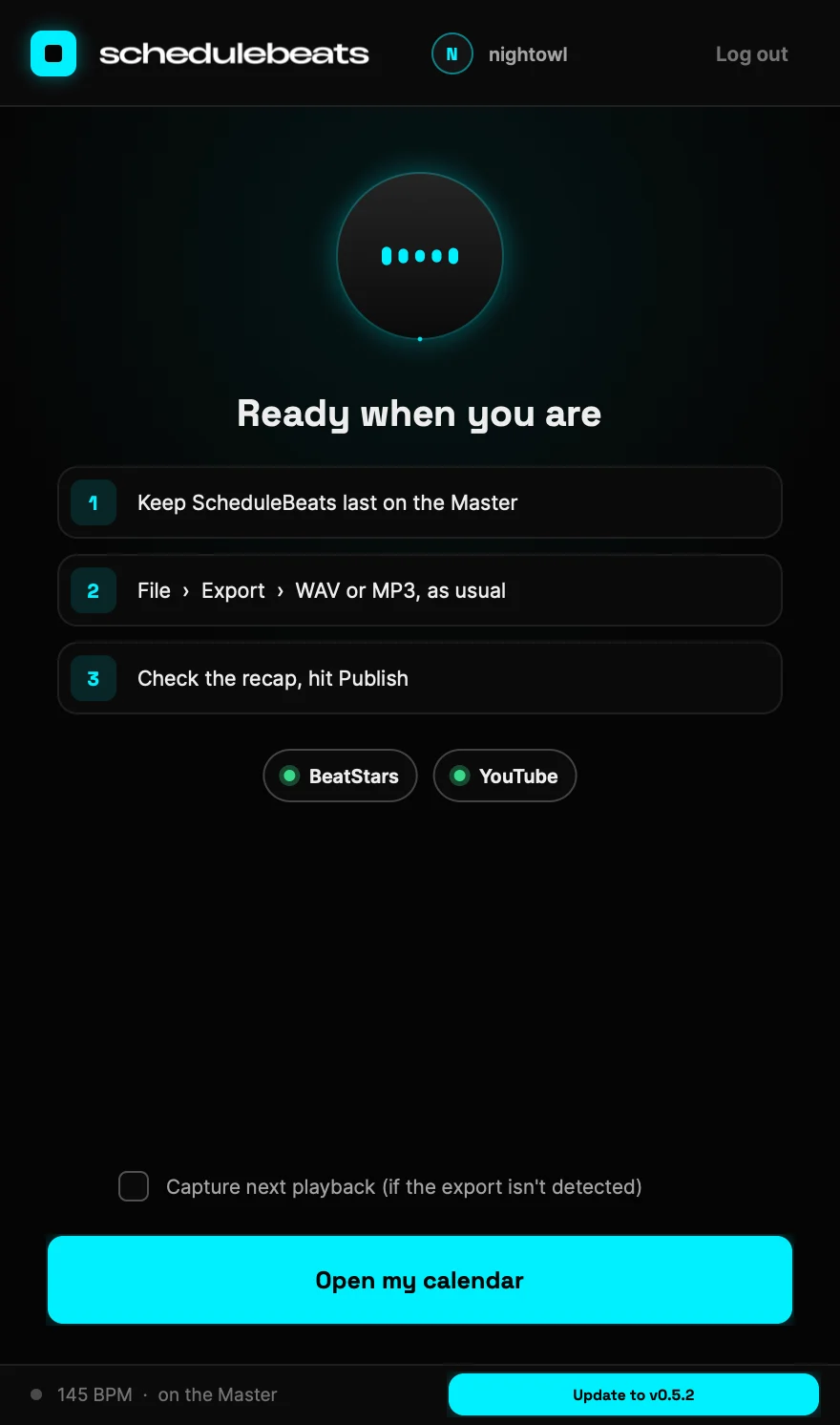
Install the VST3 and load ScheduleBeats in the last slot of the Master mixer track.
- 02
Link your account
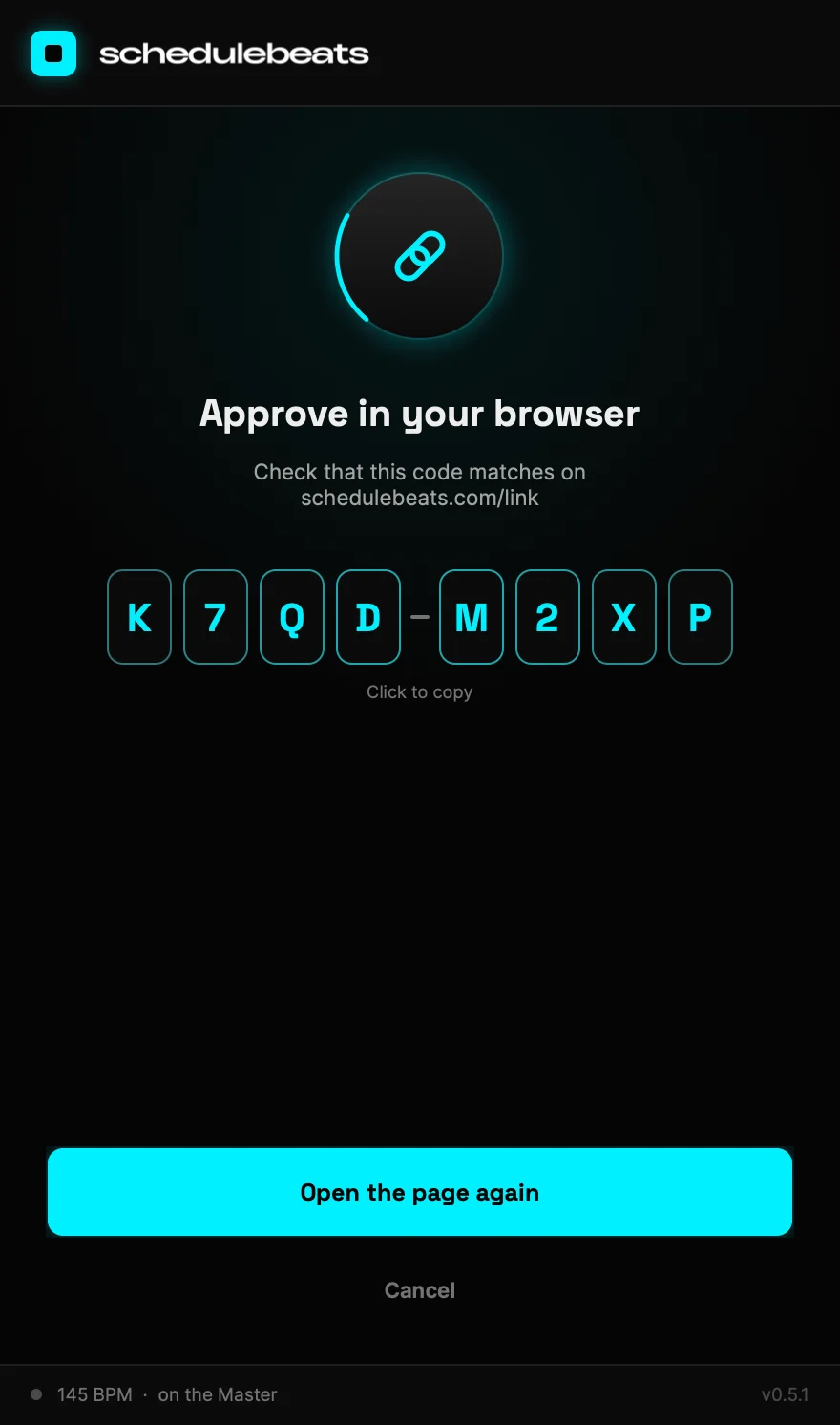
Click "Link my account" in the plugin and approve the code at schedulebeats.com/link. One time only.
- 03
Export as usual
File > Export in WAV or MP3 (or both). The plugin captures the render, whatever the format.
- 04
Check the recap and Publish
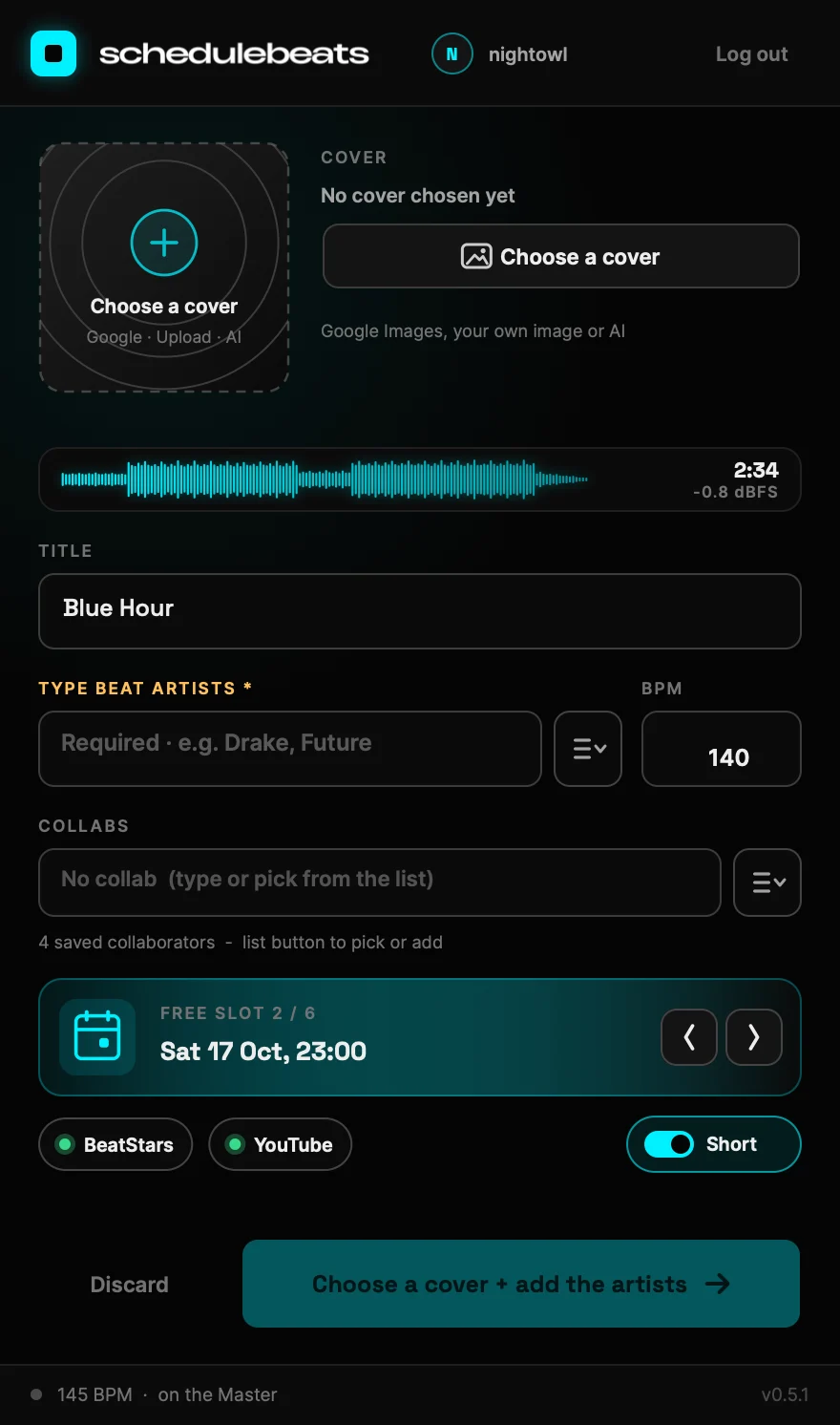
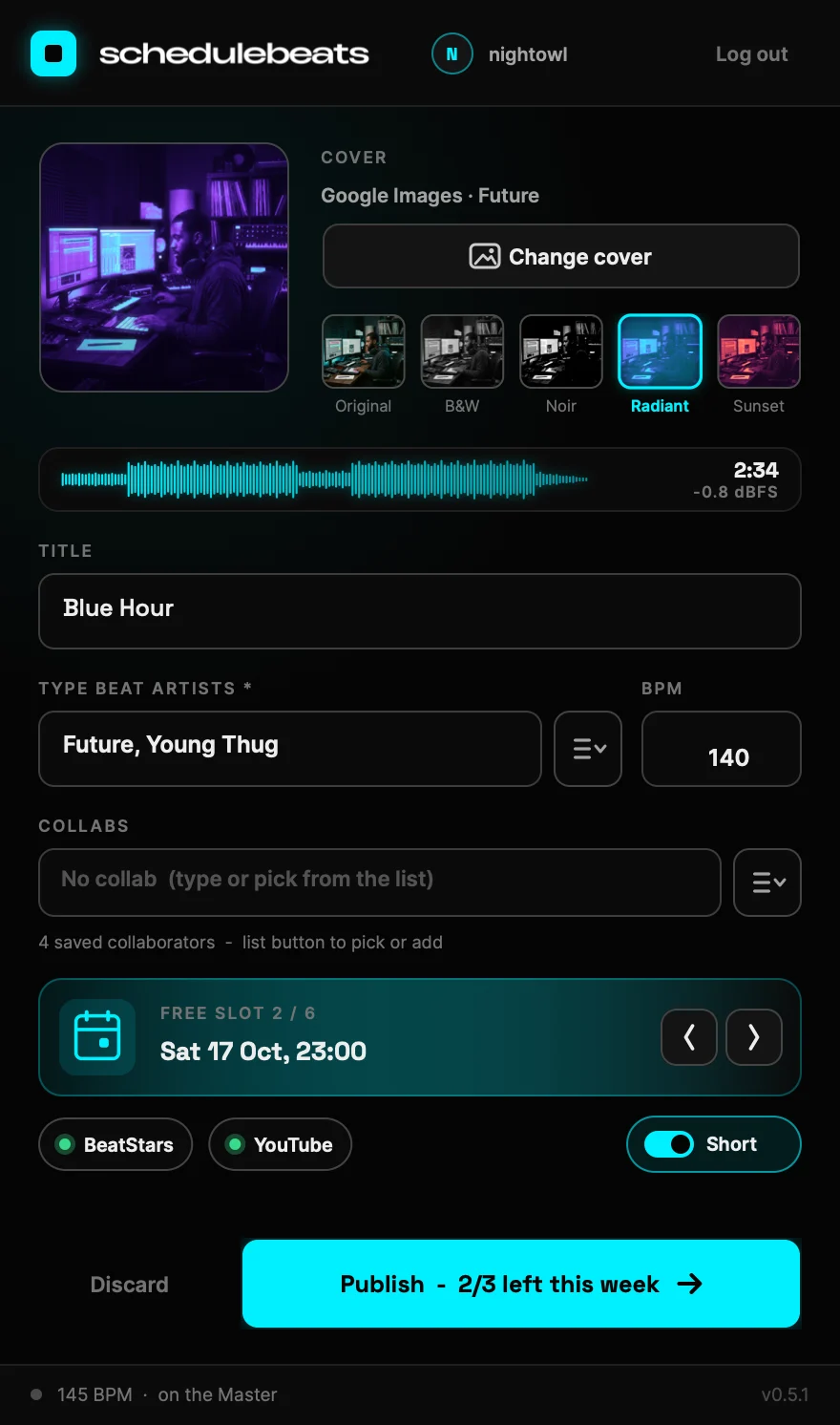
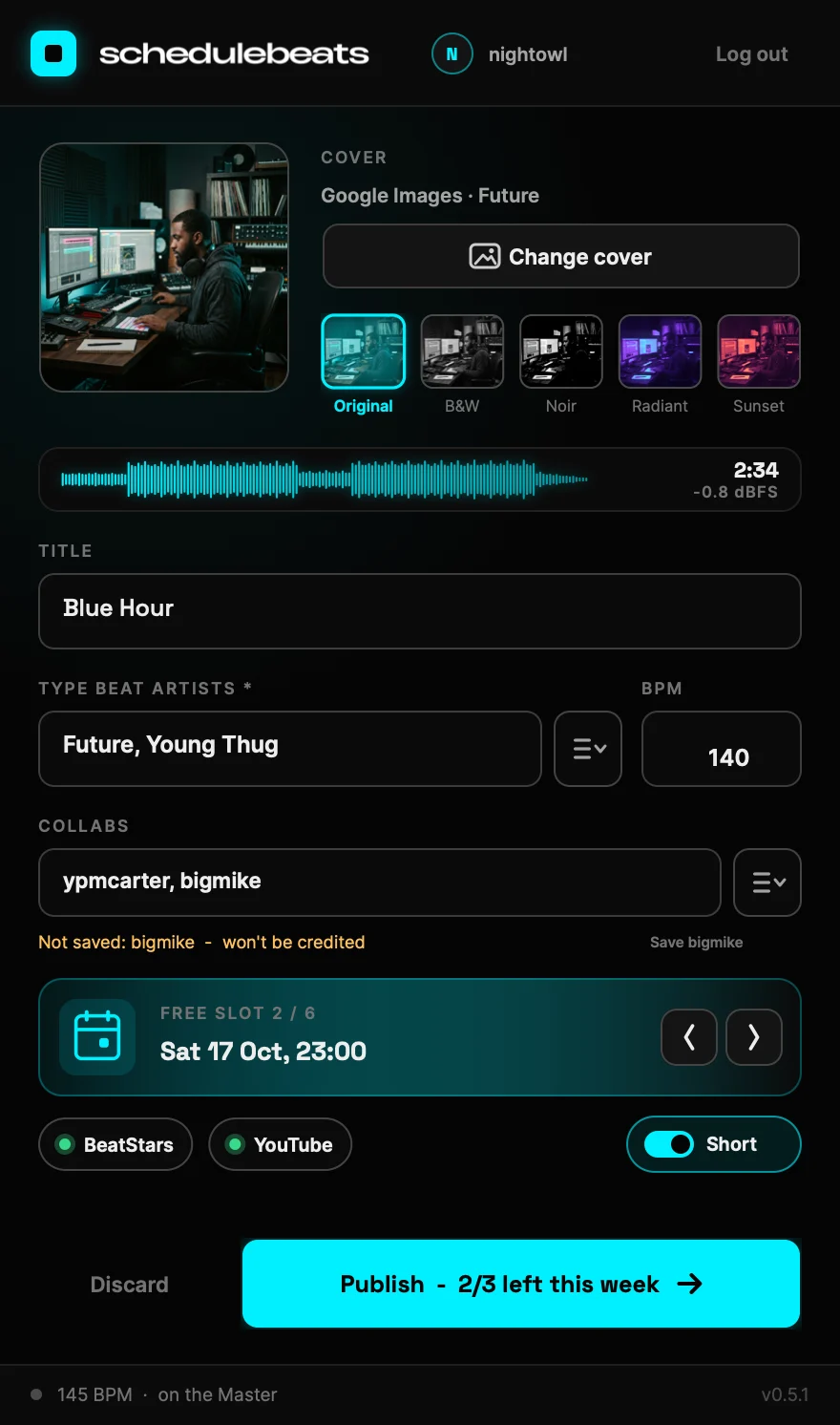
Title, BPM and the next free slot are filled in. Add the type beat artists, choose a cover and your collaborators, then hit Publish.
What you see in the plugin
From your FL export to BeatStars, YouTube and Shorts, in a few clicks.
Features
Everything your ScheduleBeats account already does, triggered from an FL Studio export.
Reads your project name
The title and BPM are read from the FL Studio project name (for example "Drake x Future - Chemistry 145"). Collaborators written as @handles are filled in when they match the collaborators saved in your account.
Type beat artists, your call
The "type beat" artists field is never pre-filled: you type the artists yourself. It is required to publish.
Collaborators from your account
Pick collaborators from the ones saved in your account, or add a new one from the plugin: it is saved to your ScheduleBeats account.
Choose your cover
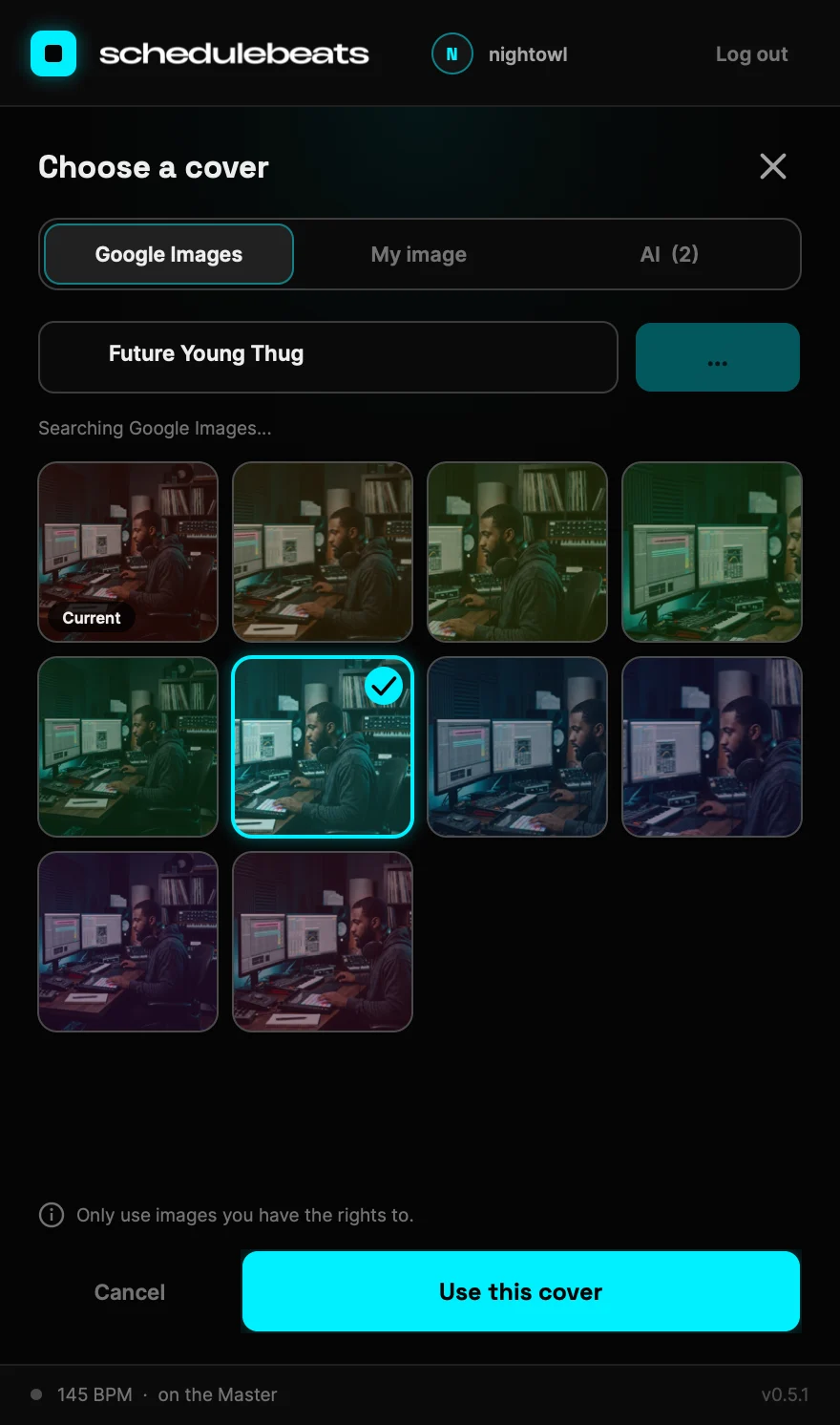
No automatic cover: pick one from Google Images, upload your own JPG or PNG, or generate one with AI. Then apply one of 5 filters (Original, B&W, Noir, Radiant, Sunset). The filter is applied to the image sent to BeatStars and YouTube.
Next free slot
The plugin picks the next free slot in your ScheduleBeats calendar. Use ‹ › to choose another one.
Your templates
Titles, descriptions and tags come from the templates you set up in your ScheduleBeats account.
BeatStars + YouTube + Short
Publish sends the beat to BeatStars and YouTube, scheduled for the slot date. The YouTube Short follows.
Links ready to share
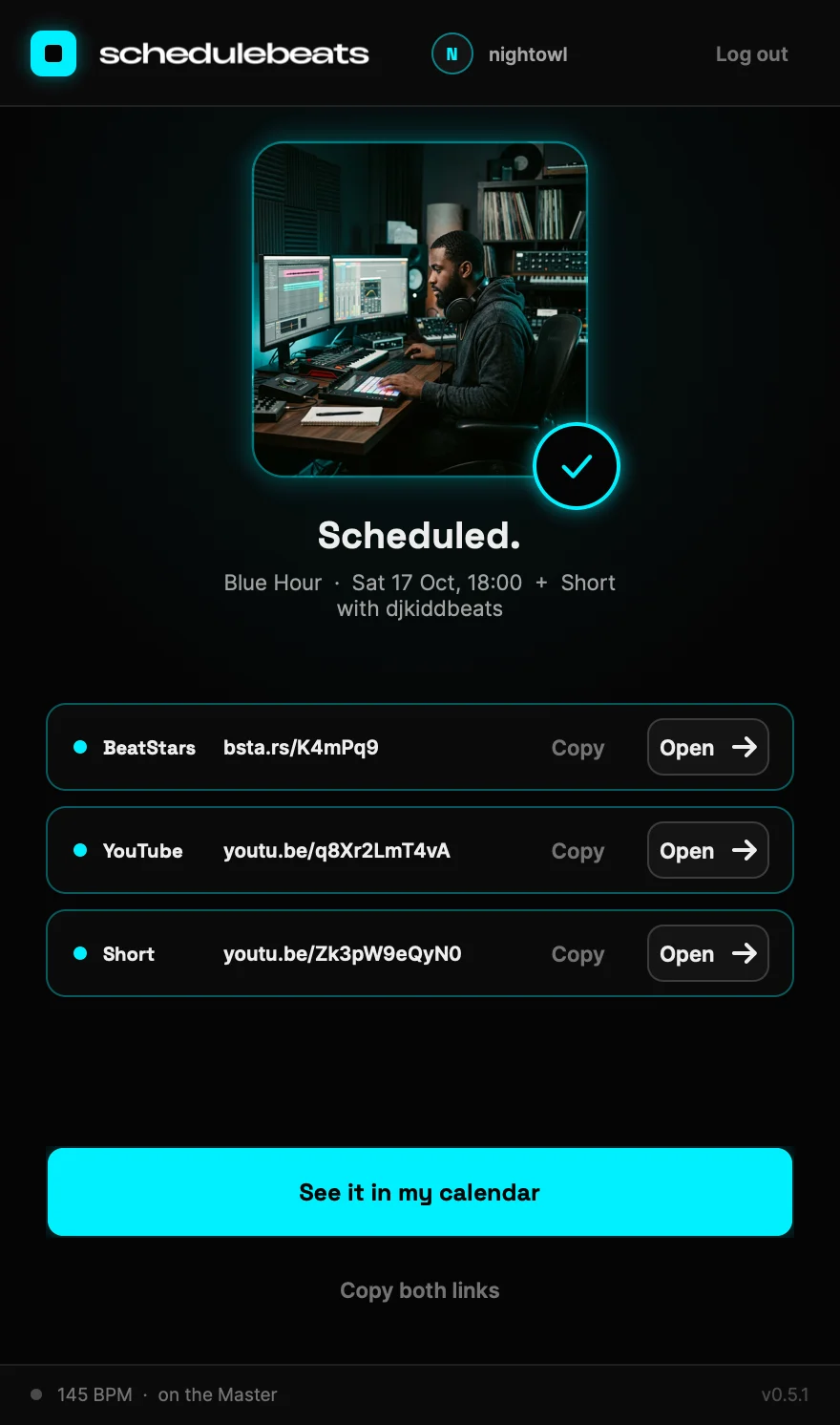
The final screen shows the cover and the BeatStars, YouTube and YouTube Short links, each with Copy and Open buttons, plus a Copy both links button for BeatStars + YouTube. The Short link appears once the Short is rendered, a few minutes later.
One-click update
When a new version is out, click "Update to vX" in the plugin: it installs itself. Restart FL Studio and you are done.
No clipping
If the mix goes over 0 dBFS, the delivered file is brought down to -0.3 dBFS instead of clipping.
Safe by default
Publish is blocked until at least one platform (BeatStars or YouTube) is connected to your account.
Specs
- Format
- VST3
- DAW
- Built for FL Studio (tested in FL Studio 20)
- macOS
- macOS 10.15 or later, universal (Apple Silicon + Intel)
- Windows
- VST3 build available, already running on Windows 11 with FL Studio 2026
- Export formats
- WAV or MP3 (or both)
- Upload limit
- 300 MB per beat (about 19 min of 24-bit / 44.1 kHz stereo WAV)
- Platforms
- BeatStars, YouTube, YouTube Shorts
- Account
- Requires a ScheduleBeats account
- Status
- v0.6.1 · Mac & Windows
FAQ
What is the ScheduleBeats FL Studio plugin?
A VST3 plugin for FL Studio that captures your beat when you export it and schedules it on BeatStars and YouTube (plus a YouTube Short) through your ScheduleBeats account, with the title and BPM read from the project name and the cover, artists and collaborators you choose.
Where do I put the plugin in FL Studio?
In the last slot of the Master mixer track, so it receives the final mix.
Do I have to change how I export?
No. Use File > Export in WAV or MP3 (or both) as usual. The plugin captures the render whatever the format.
How do I connect the plugin to my account?
Click "Link my account" in the plugin, then approve the code shown at schedulebeats.com/link while logged in.
How does it know the title, BPM and collaborators?
It reads the FL Studio project name: title and BPM (recommended format: "Drake x Future - Chemistry 145"). Collaborators written as @handles are filled in when they match collaborators saved in your account, even with small typos, and your own @tag is removed. The "type beat" artists are never pre-filled: you enter them, the field is required. Everything can be edited on the recap screen.
How do I choose the cover?
Click "Choose a cover" on the recap: pick an image from Google Images, upload your own JPG or PNG, or generate one with AI. Then pick one of 5 filters: Original, B&W, Noir, Radiant or Sunset. There is no automatic cover, and a cover is required to publish.
Can I add a new collaborator from the plugin?
Yes. Collaborators are picked from the ones saved in your ScheduleBeats account. A new one can be added from the plugin and is saved to your account.
How do I update the plugin?
In one click, right inside FL Studio. When a new version is out, the plugin shows "Update to vX": click it and the update downloads and installs itself. Your Mac may ask for your password, or Windows for permission, if the VST3 folder is protected. Then restart FL Studio. Your account stays linked. On version 0.6.0 or older, the button opens the download page instead: download the new zip and replace ScheduleBeats.vst3 in your VST3 folder once. Versions that are too old can no longer publish.
When is the beat published?
At the date of the selected slot in your ScheduleBeats calendar. By default it is the next free slot; use ‹ › to pick another one. The YouTube Short follows.
Do I need BeatStars and YouTube connected?
At least one of them. If neither BeatStars nor YouTube is connected to your ScheduleBeats account, Publish is blocked.
Does it work on Mac and Windows?
Yes, there is a VST3 for macOS (10.15 or later, Apple Silicon and Intel) and one for Windows. The Mac build is tested in FL Studio 20; the Windows build is already installed and running on Windows 11 with FL Studio 2026.
Does it work in other DAWs?
The plugin is built for FL Studio. Other DAWs are not supported.
Is there a size or length limit?
The plugin has no length limit. Uploads are limited to 300 MB per beat, about 19 minutes of 24-bit / 44.1 kHz stereo WAV.
Do I need a ScheduleBeats account?
Yes. The plugin publishes through your ScheduleBeats account, its calendar, templates and connected platforms.
Why does macOS warn me about the plugin? Is it safe?
Yes, it is safe. The warning only means the Mac build is not notarized by Apple yet (Apple's paid signing program). It is not a virus alert. The plugin only sends the beats you export to your own ScheduleBeats account. To allow it, run one Terminal command, shown on the Mac download page.
Windows or my browser warns me about the download. Is it safe?
Yes. The plugin is not signed with a paid Windows certificate yet, so Edge or Chrome may say the file "isn't commonly downloaded" and Windows may block the zip. It is not a virus alert. In the browser, click Keep. Then right-click the zip > Properties, tick "Unblock", click OK and extract it.
Your next export could already be scheduled.
Get the plugin for your system.
Requires a ScheduleBeats account · Create an account